
Database Schema Documentation in Notion or GitHub, Without Retyping It
· Updated
Every team has one: the “Database schema” page in the wiki. Someone wrote it carefully during the first months. It has a diagram exported as a PNG, a table per entity, a column list with types. And it is wrong, because three migrations have shipped since, and nobody went back to update a page that takes an hour to update.
The page is not wrong because people are careless. It is wrong because it was typed. Everything on it — table names, column types, which column is a foreign key — already existed in the data model. Retyping it into a wiki created a second copy, and second copies drift.
This post is about the other way to do it: export the schema page from the model as one Markdown file, paste it where the team reads, and when the schema changes, export it again. I will show what the file contains, how it renders in GitHub and in Notion (with the one click Notion needs), which other tools draw the diagram, and where this approach stops working.
What the page needs, and why that list matters
Strip a schema page down to what a reader actually uses and it is short:
- A diagram, so a newcomer sees the shape of the thing before reading tables.
- An index of tables with one line each.
- Per table: the columns, with type, PK/FK, nullable, default, and a description in words.
- Indexes, and the relationships between tables.
Nothing on that list is authored on the wiki page. Every item is a fact about the model. That is the whole argument: a page made only of facts that live elsewhere should be generated from where they live, the same way you would never hand-copy a test report.
One Markdown file from the model
In Sqemo, the Export menu has a Export schema document (Markdown) item. It writes one .md file:
- The project name, and a one-line count of entities and relationships.
- A
mermaidcode block with anerDiagram— every table with its columns and PK/FK markers, every relationship with crow’s-foot ends, identifying relationships solid and non-identifying dashed. - An entity index table, each row linked to its section.
- A section per entity: its description, a column table (logical name, physical name, type, domain, PK, FK, Null, default, description), and an index table when the entity has indexes.
- A relationship table.
The column tables come from the same code that produces the CSV definition reports, so the two never disagree. Headers follow the app’s UI language — English UI, English headers.
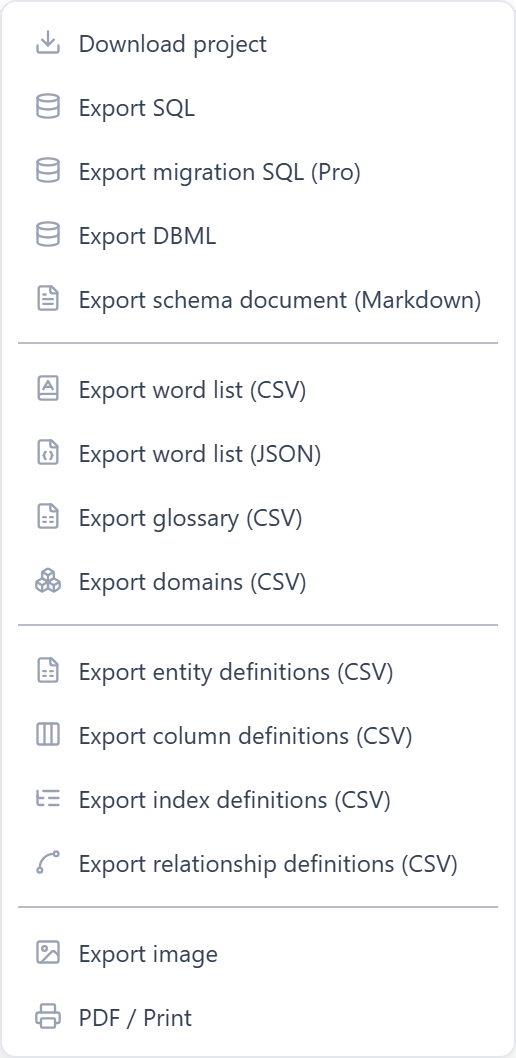
Why Markdown and not PDF or HTML? Because Markdown is the one format that GitHub, GitLab, Notion, Obsidian, and most internal wikis all accept by paste, and because mermaid inside Markdown means the diagram is text — it diffs, it merges, and it is not a screenshot that quietly goes stale.
GitHub: commit it next to the code
The simplest home for the file is the repository itself, as docs/schema.md. GitHub renders mermaid blocks natively in Markdown files, wiki pages, issues, and pull requests. No plugin, no action, no CI step.
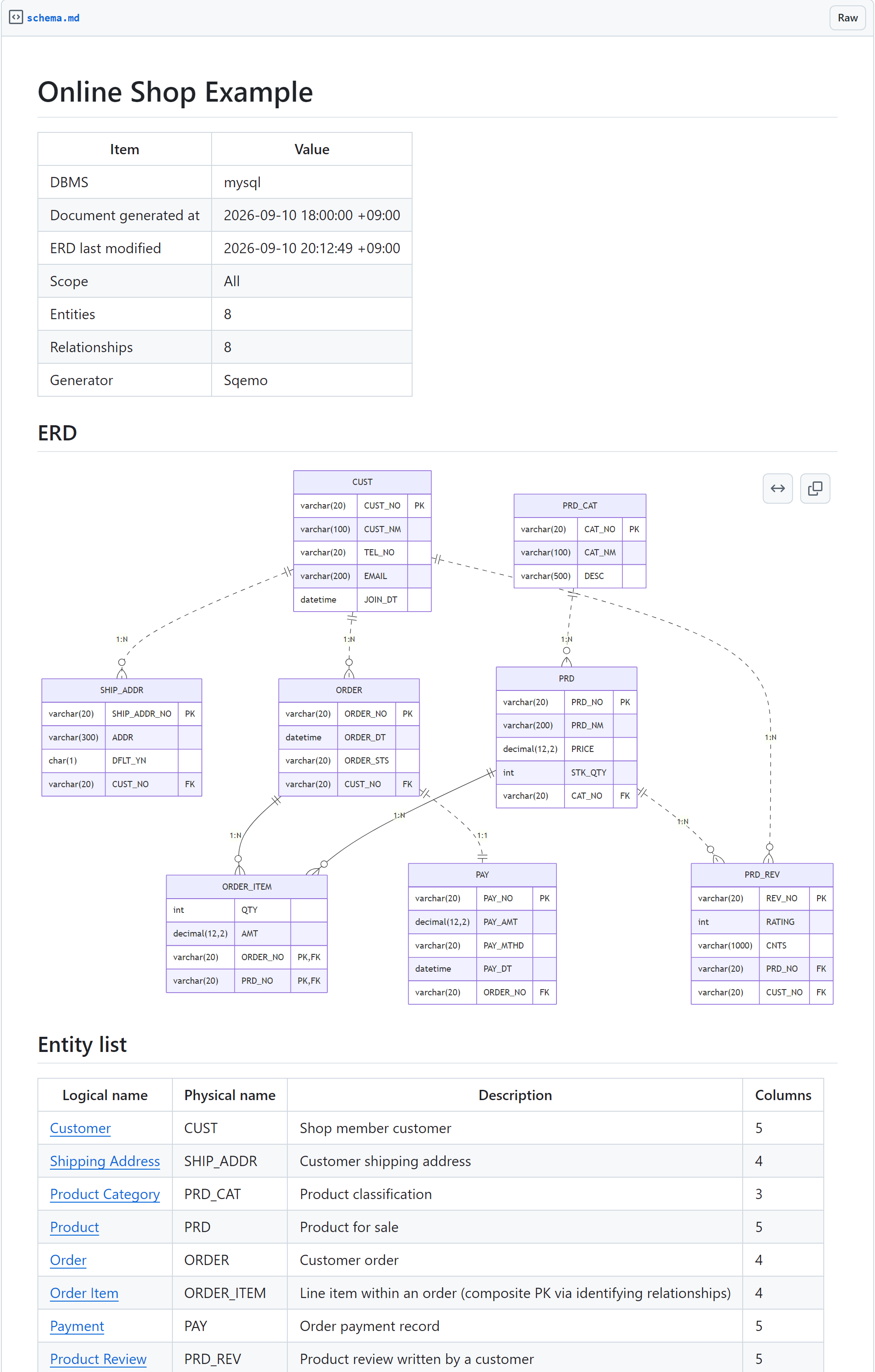
Two things happen once the file lives in Git that do not happen on a wiki:
- The diff is the change log. Re-export after a migration and the pull request shows exactly which columns appeared, which types changed, which foreign key moved. Reviewers read the schema change in the same PR as the code change.
- The entity index links work. The index table links to each entity’s section with GitHub’s heading anchors, so a 60-table document is navigable.
If your repository is on GitLab, the same file renders the same way — GitLab has supported mermaid fences for years. Azure DevOps wikis draw mermaid too, but with their own ::: mermaid fence syntax, so the block needs a two-line edit there.
Notion: paste, then one click
Notion is where most non-engineering readers are, so this is the case I checked most carefully.
Copy the file’s contents and paste into an empty Notion page. Notion converts the Markdown on paste: # lines become heading blocks, the pipe tables become Notion tables, and the fenced block becomes a code block. Crucially, the code block’s language is set to Mermaid automatically, because the fence said mermaid. You do not have to pick it from the list.
The one thing Notion does not do on paste is switch the block to diagram view. Hover the code block, open the view toggle at its top-right corner, and choose Preview. The diagram draws in place and stays that way.
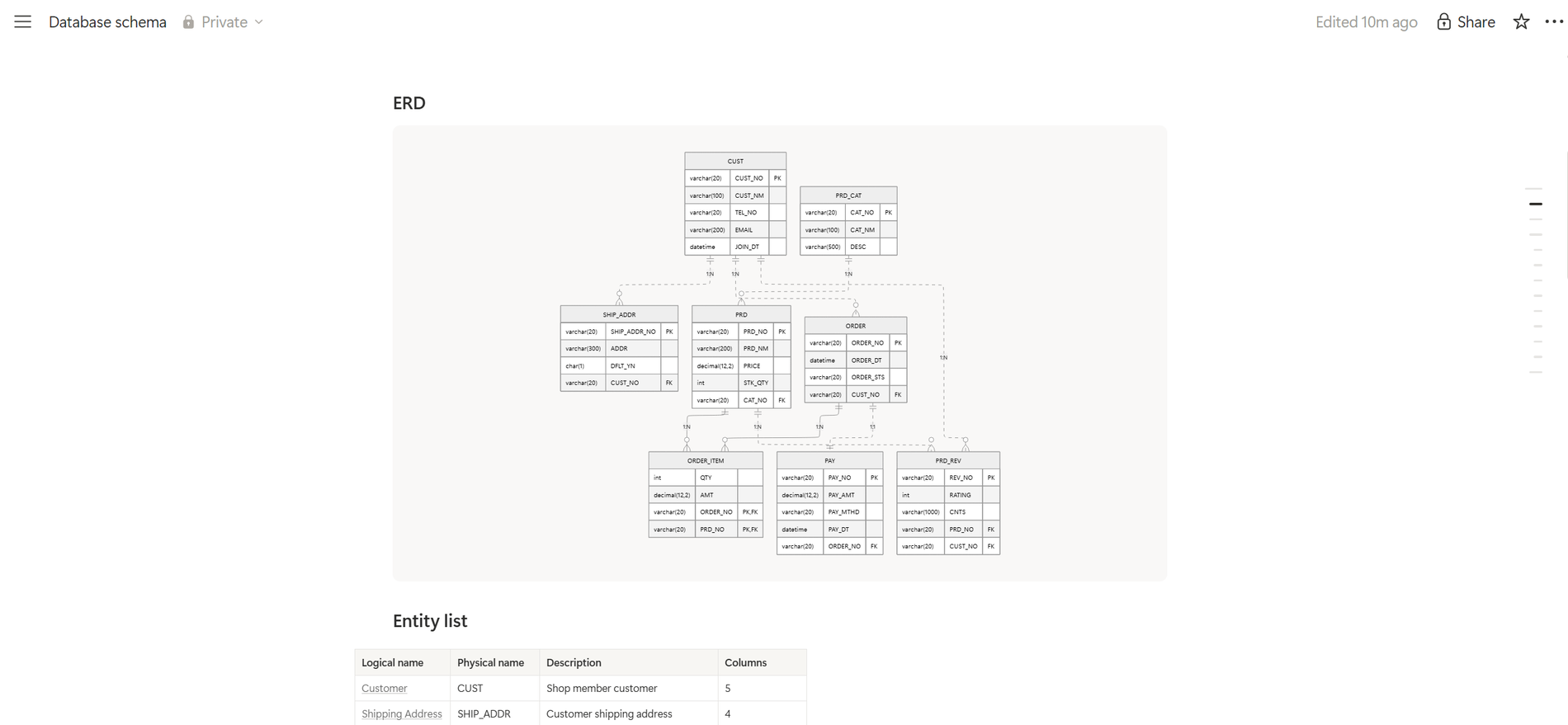
One difference from GitHub: Notion has no in-page heading anchors, so the entity index’s links appear as underlined text but do not jump. The tables and the diagram are unaffected. If the index bothers you, delete that one block after pasting.
Obsidian, and the ones that need a plugin
Obsidian renders mermaid fences in its reading view out of the box, so a schema vault page is a file drop. Confluence does not render mermaid natively; it needs a marketplace macro, and which one your instance has is an admin question. If you are on Confluence, the column tables still paste fine — it is only the diagram block that needs the macro.
The loop that keeps it honest
The point of all this is not the first export. It is the second one.
When the schema changes — a column added, a type widened, a relationship reversed — change it in the model, export the Markdown again, and replace the page. On GitHub that is a commit whose diff is the release note. In Notion it is select-all in the page body, paste, and the preview toggle once more.
That loop only works if the model is actually the source of truth. If the database is changed by hand in production and the model is not, the exported document is precisely as wrong as the model. Sqemo’s Pro plan has a drift check that compares the model against a live database for exactly that reason; on the free plan, importing the current DDL over the model does the same job manually.
Where it stops working
I want to be specific about the limits, because a schema page that overpromises is how the old one went stale.
- Descriptions have to exist in the model. A column with no description in the model gets its logical name as a fallback in the document. That is not wrong, but it is not documentation either. The document makes missing descriptions visible; it does not write them.
- Very large schemas make a very large diagram. A
erDiagramwith 300 tables renders, but nobody reads it. The tables below it are still useful; delete the diagram block, or keep it and accept that it is a map, not a picture. The better fix is to not export it whole: the export dialog has a scope setting (everything, the selected entities, or one subject area), so a 300-table model becomes a dozen subject-area documents, each with a diagram a reader can actually follow, and the area’s name goes into the file name and title. - It is the physical model. The document shows physical names alongside logical names and uses physical data types. If your readers want the logical model only, this is not that page.
The Korean counterpart of this post covers what to put in a table and column definition document — the content side. This one is about where it lives and how it stays current: not on a page somebody typed, but in a file the model wrote.
Frequently asked questions
- How do I document a database schema in Notion?
- Paste a Markdown file into a Notion page. Notion converts headings and tables into blocks and turns a ```mermaid fence into a code block with the language already set to Mermaid; open the block's view toggle in its top-right corner and pick preview to see the diagram. Generate the Markdown from your data model rather than typing it, so the page can be replaced in one paste when the schema changes.
- Does GitHub render mermaid ER diagrams in Markdown?
- Yes. A ```mermaid code block containing an erDiagram renders as a picture in README files, wiki pages, issues, pull requests, and gists, with no plugin. Entities show as boxes with their columns and PK/FK markers, and relationships draw with crow's-foot ends.
- What should a schema documentation page contain?
- A diagram for orientation, an index of tables, and for each table its columns with type, primary and foreign key flags, nullability, default value, and a description. Relationships and indexes complete it. Everything on that list already exists in your data model, which is why the page should be exported, not written.
- How do I keep schema documentation in sync with the database?
- Stop treating the document as the source. Keep the model as the source, export the document from it, and re-export after every change. In a Git repository the diff of the exported file is the change log; in Notion you replace the page body. If the database itself drifts from the model, a drift check against the live database catches that separately.